Create images, edit photos, make videos and songs with AI
Describe what you want in plain words. Edit photos with words, try on clothes, turn any photo into a video with sound or make a song — one simple studio, one flat price.
One tool for each job, in plain words
Pick what you want to do. Each tool asks only for what it needs — a description, a photo or a clip — and does the rest.
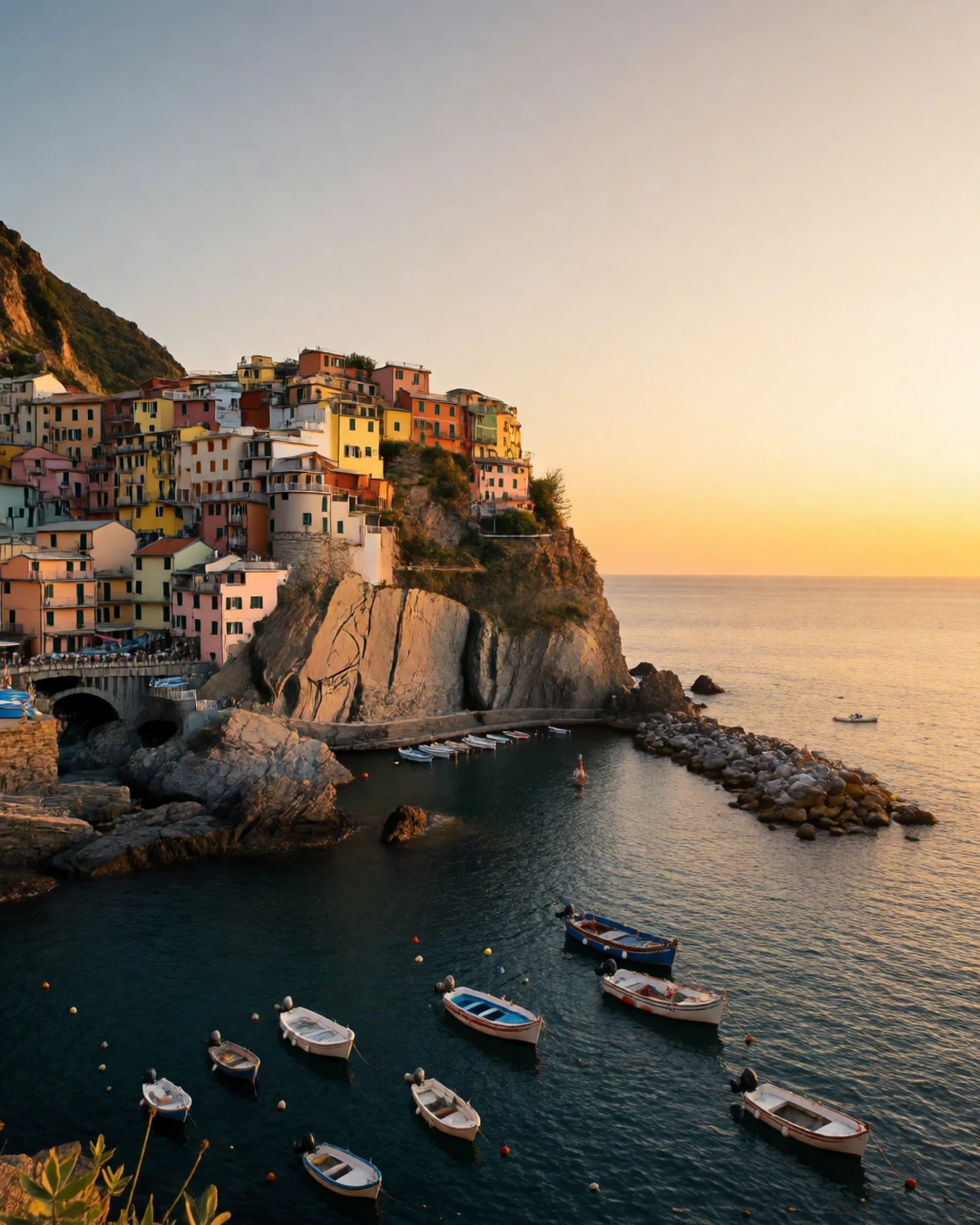
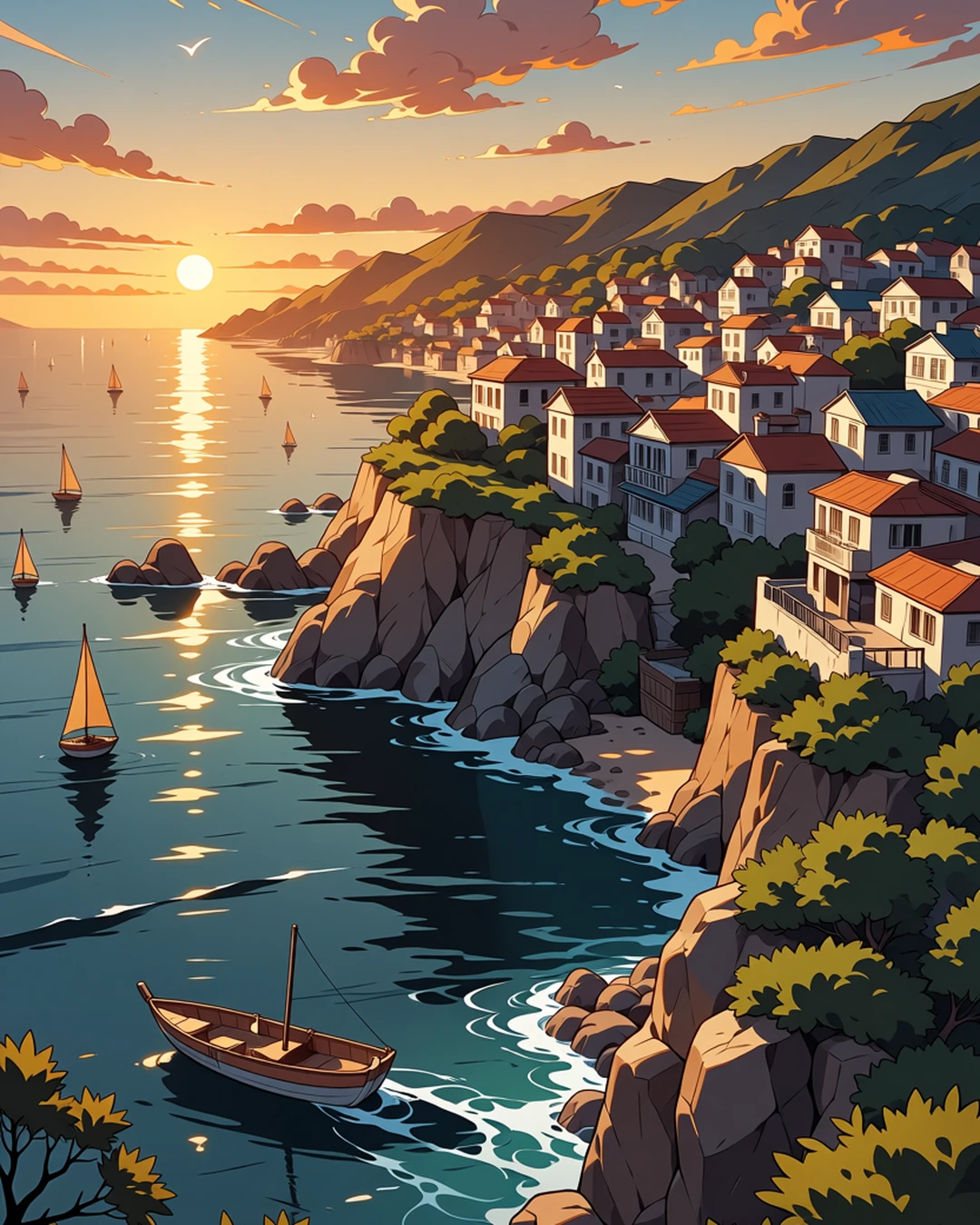
A coastal village at sunset, colorful houses on a cliff, fishing boats in the harbor
Your wordsPhotoCreate a realistic image
Describe a picture in your own words and get a lifelike photo.
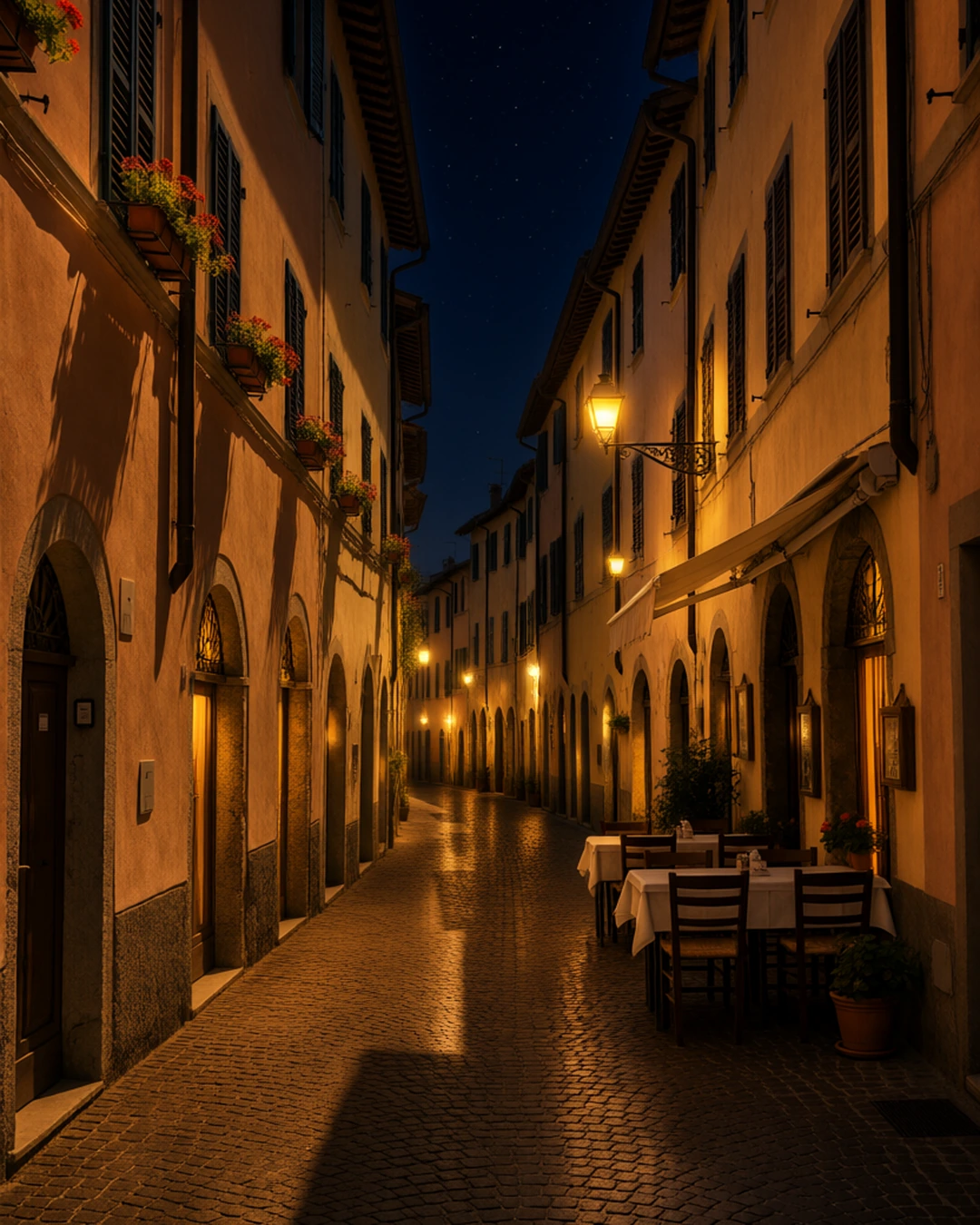
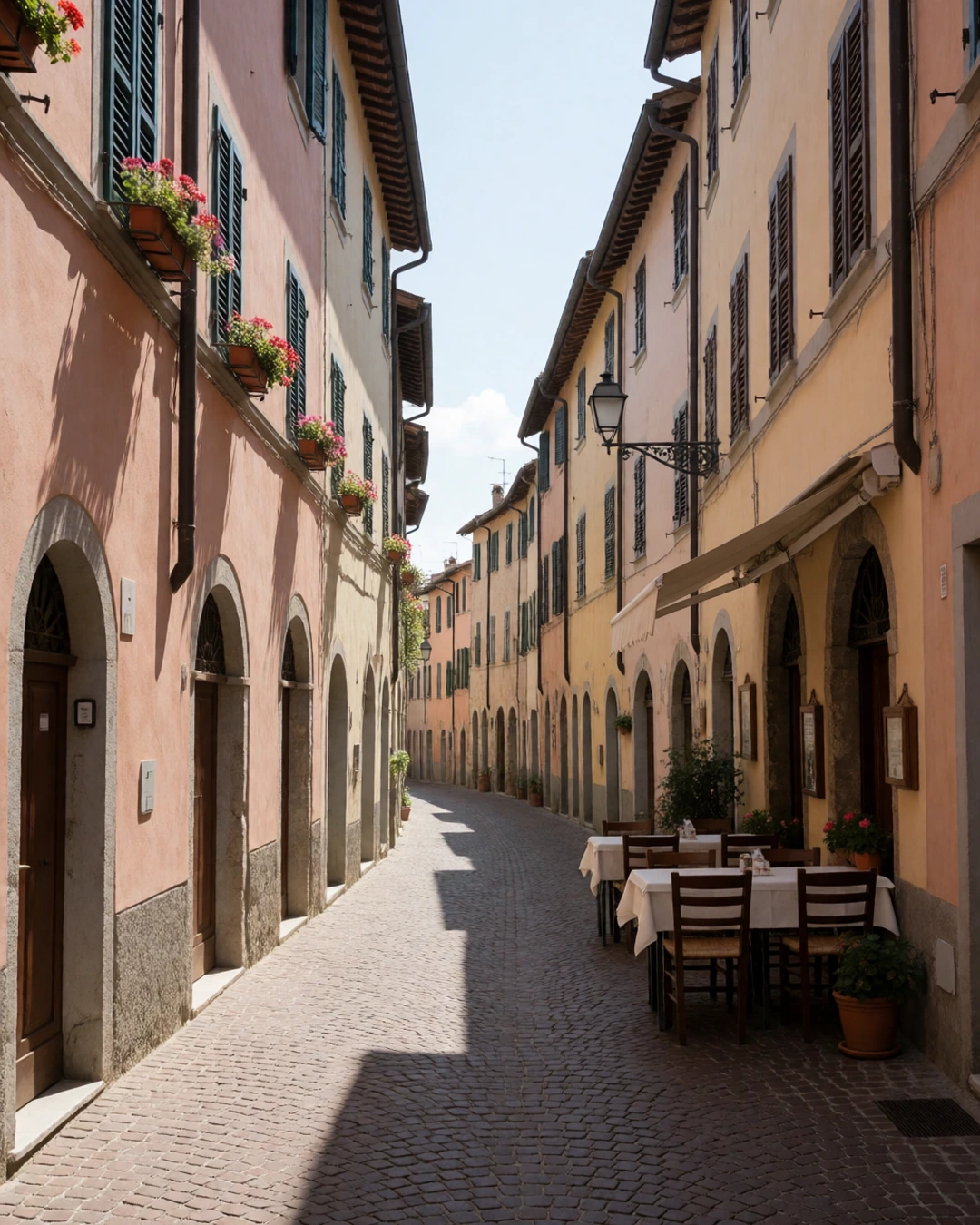
In every plan- BeforeAfter“Make it night: warm glowing street lamps, lit windows and a starry sky.”
Edit with words
Pick a photo, say what should change, and get it back edited.
In every plan 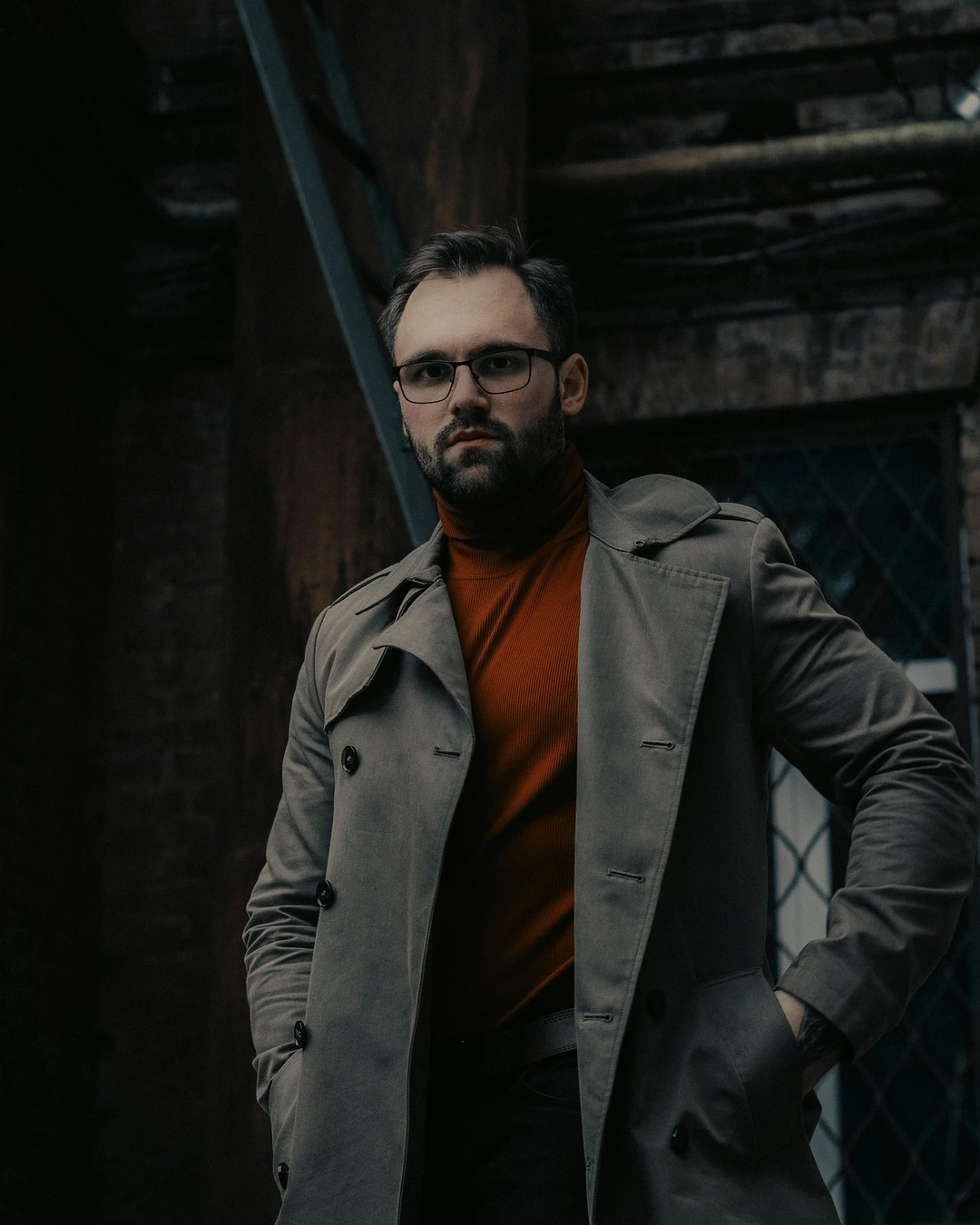
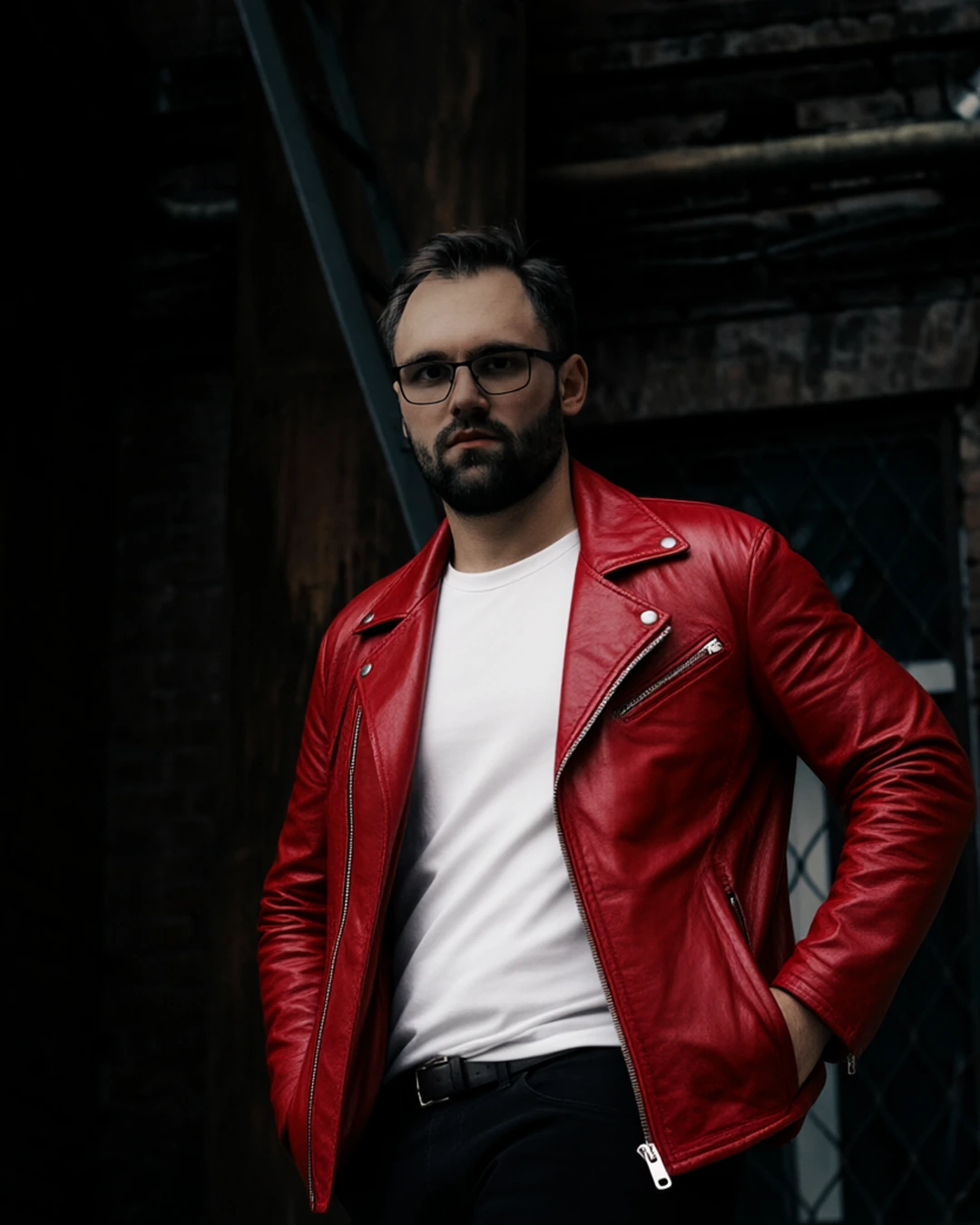 BeforeRed leather jacket
Change clothes
Put new clothes on the person in a photo. Same pose, same light.
Pro and Max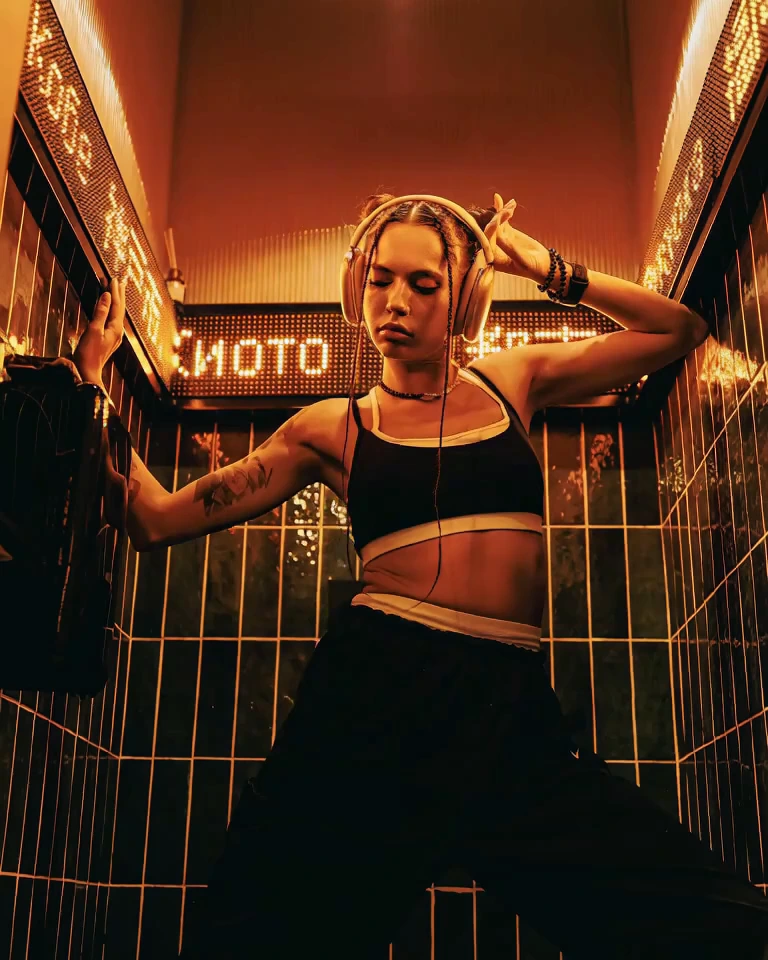
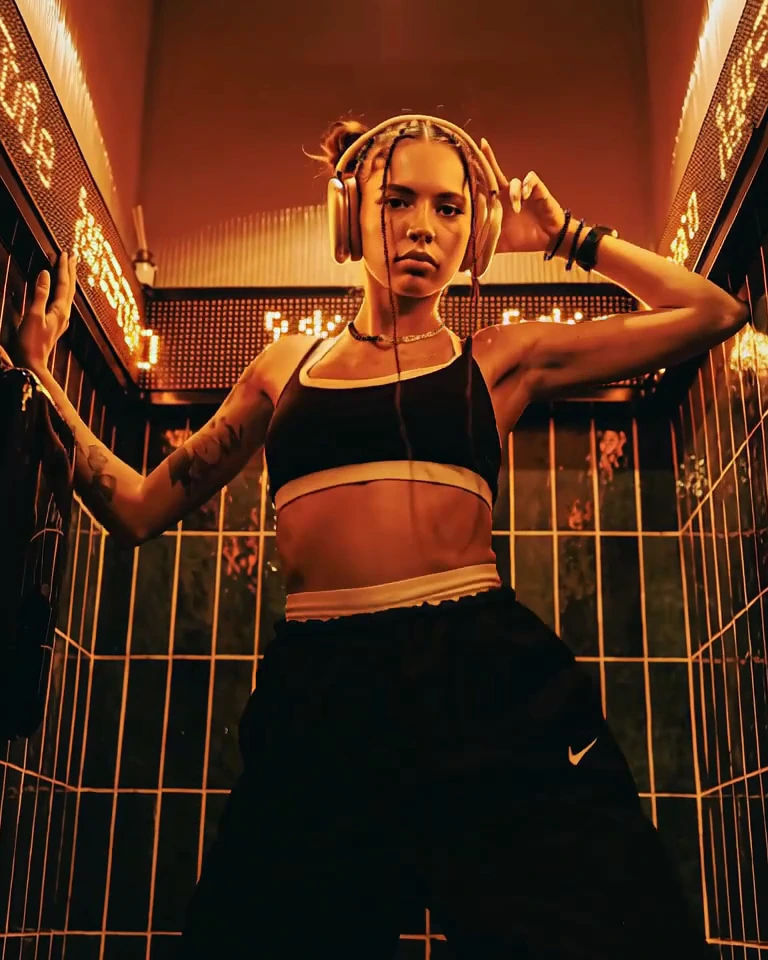 Your photoVideo
Animate a photo
Bring a photo to life: it becomes the first frame of a clip with sound.
Pro and MaxA coastal village at sunset, colorful houses on a cliff, fishing boats in the harbor
Your wordsCartoonCreate a cartoon image
Describe a picture in your own words and get an anime or cartoon drawing.
In every plan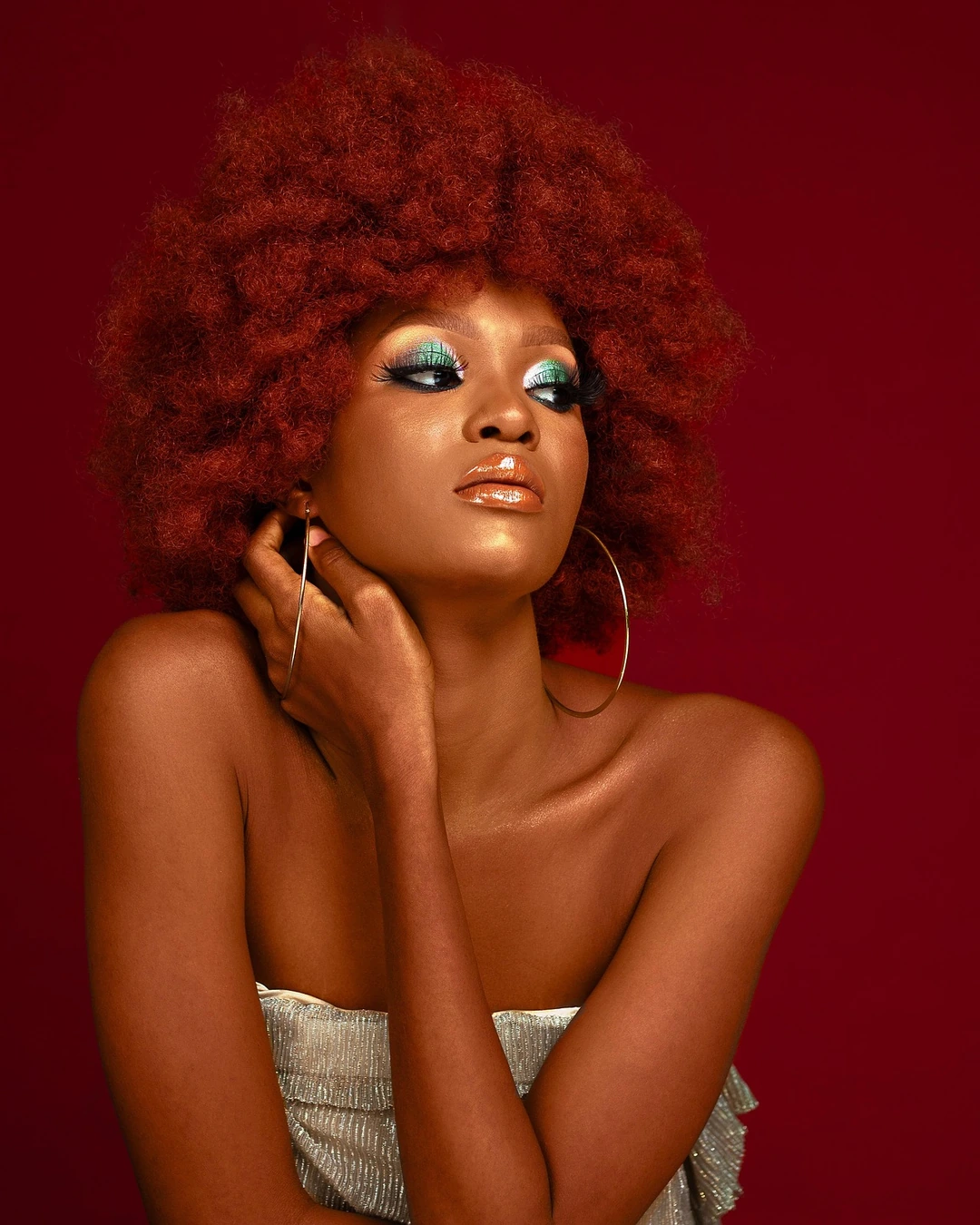
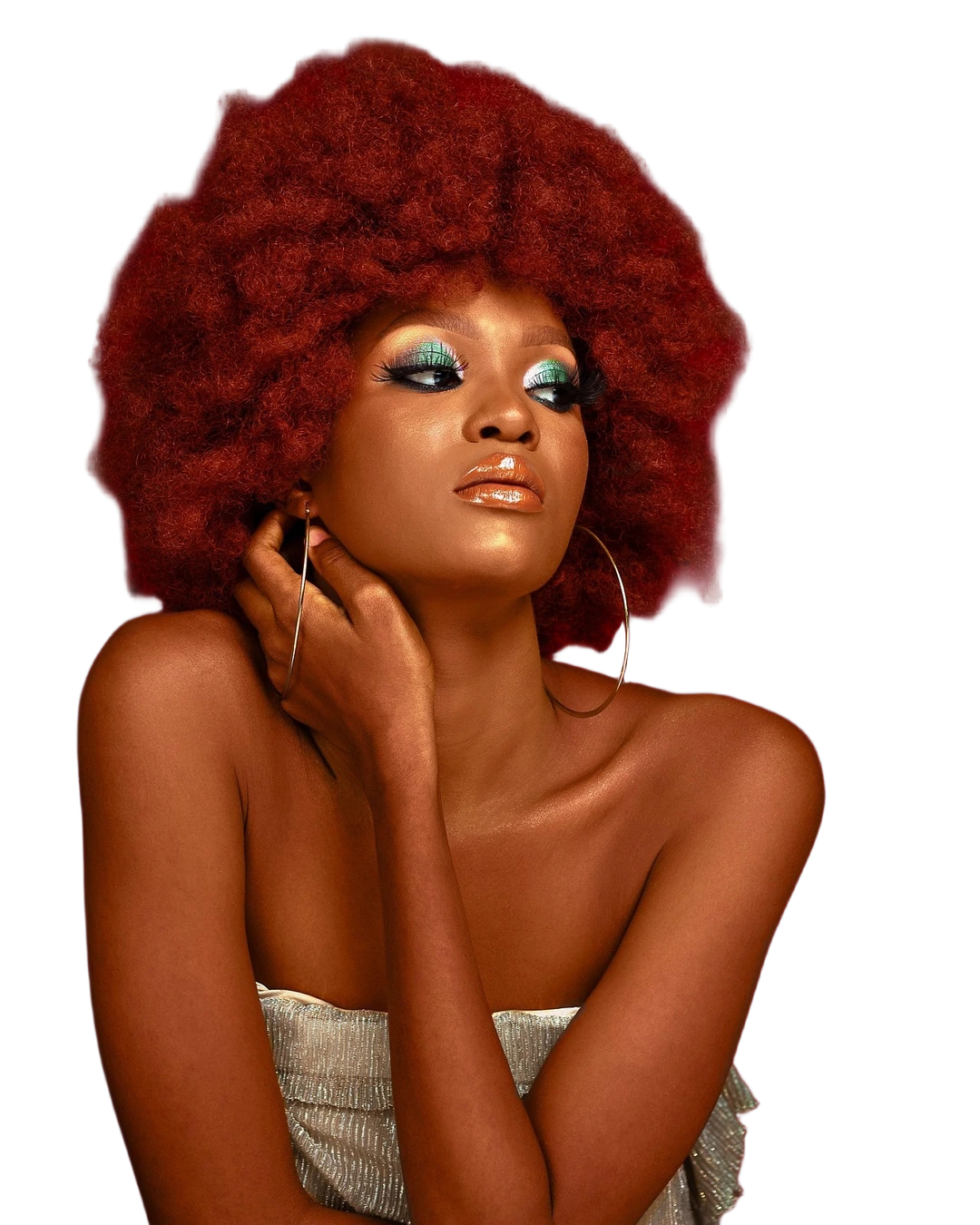 BeforeTransparent
Remove background
Cut out the subject of a photo, on a transparent or plain background.
Pro and Max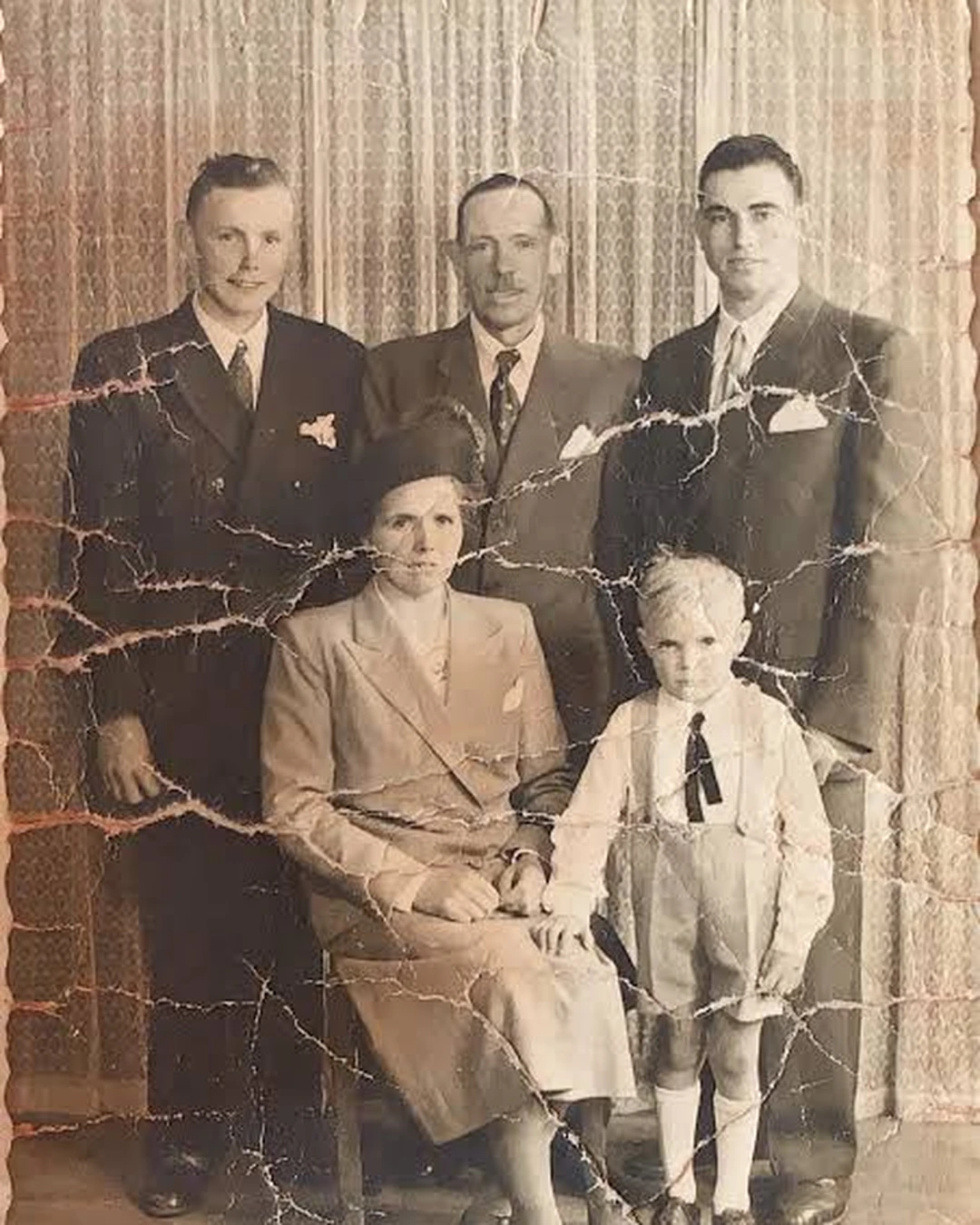
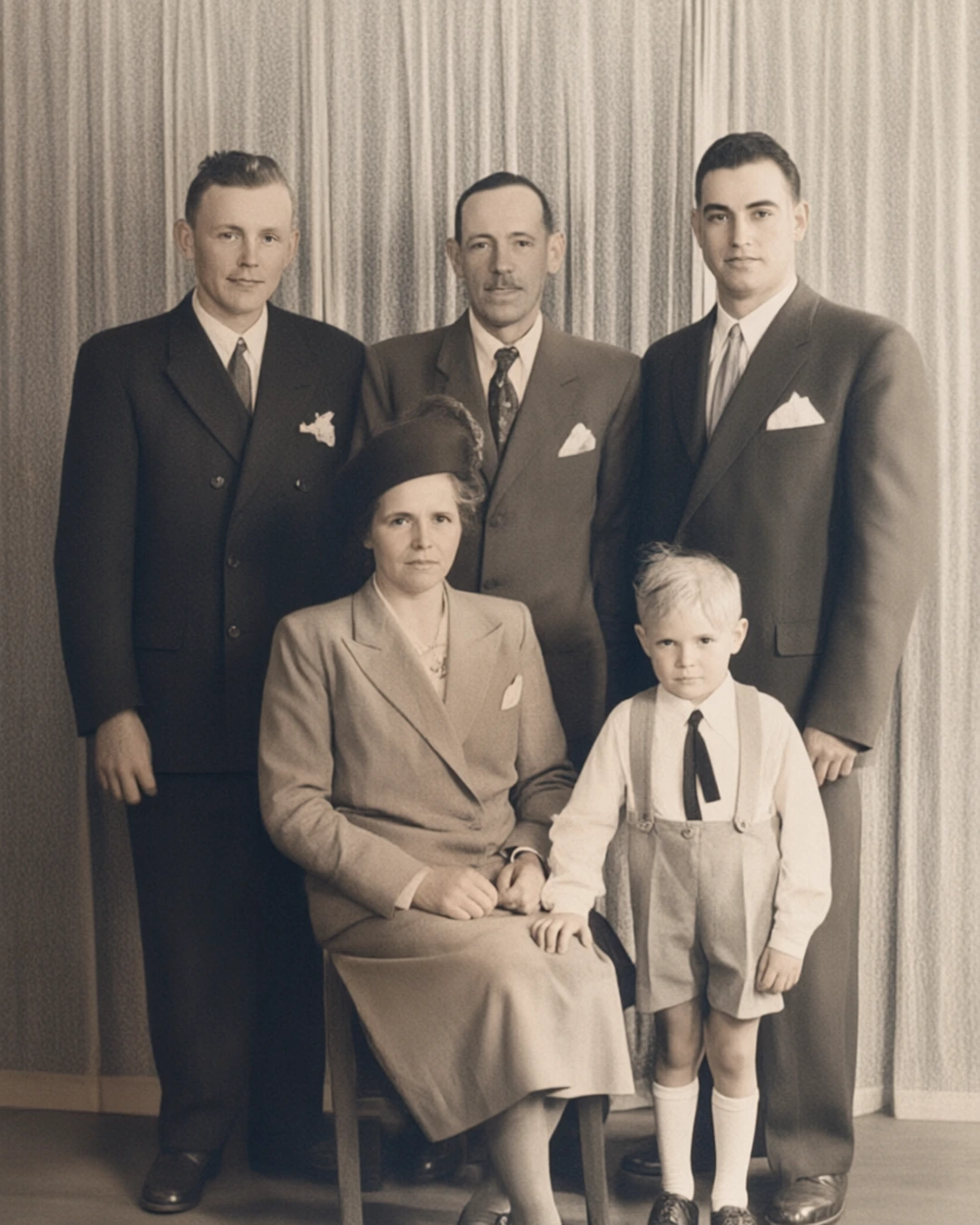 BeforeRestored
Restore an old photo
Repair scratches, blur and faded colours, and bring back lost detail.
Pro and Max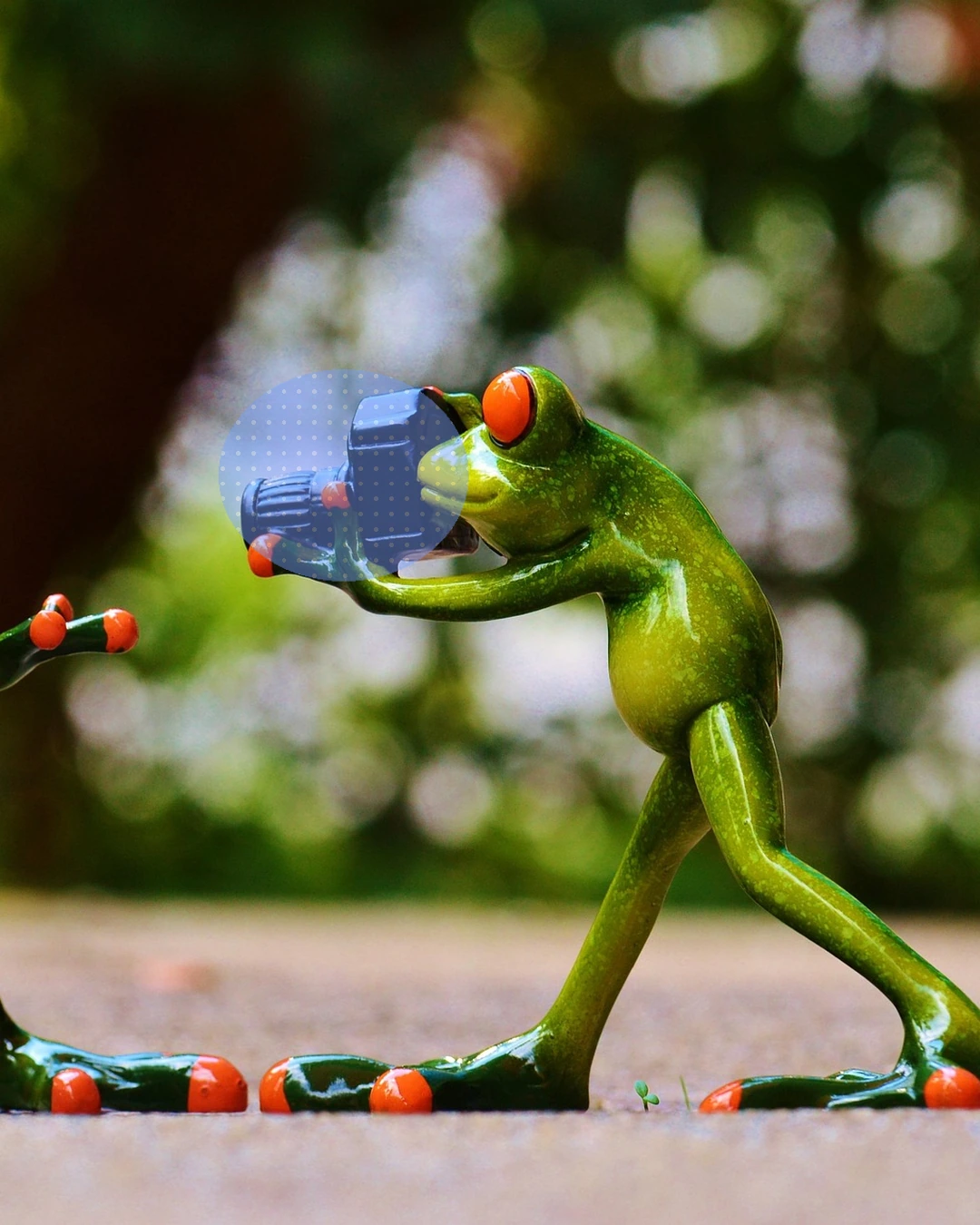
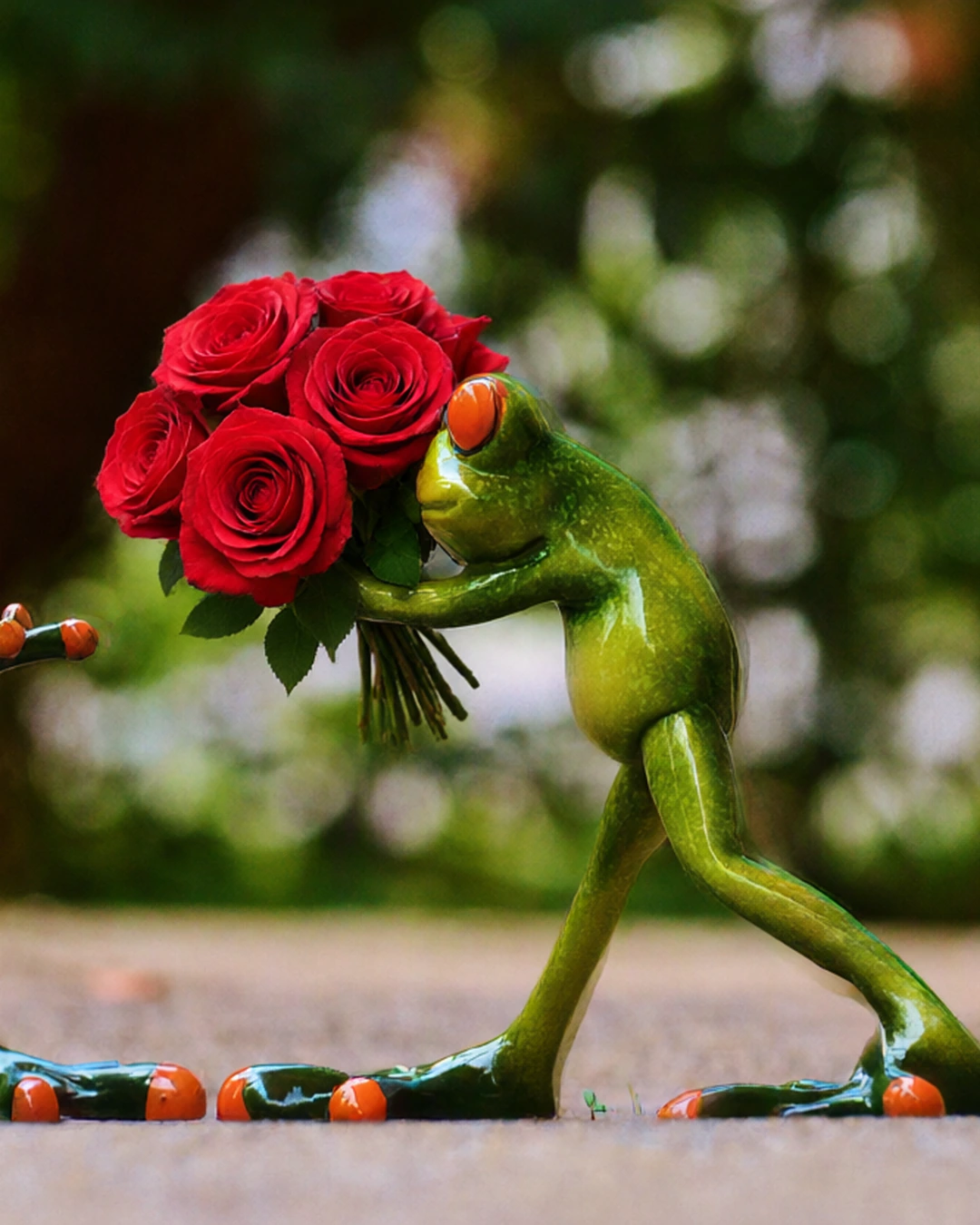 MarkedAfter“a bouquet of red roses”
Edit part of a photo
Paint over a part of your photo and say what goes there, or remove it.
Pro and Max
From idea to download in three steps
Pick a tool
Create a picture, edit a photo, try on clothes or make a video.
Describe it, or add a photo
Say what you want in your own words. The best settings are already chosen.
Download the result
It lands in your private gallery. Results stay 48 hours — save your favorites.
Turn any photo into a video, with sound
Add a photo and it becomes the first frame of a short clip that moves and sounds real. Say what should happen, or leave it to GenVista. Then make the clip longer, restyle it, or spin the camera around a moment.
- Clips with their own sound
- Portrait, square or widescreen
- Extend, restyle or recast any clip
Your photoVideoNo credits to buy. No balance to watch.
Most AI apps sell credits, so every idea has a price. GenVista is one monthly plan: make what you want, all month.
Credit-based apps
- Buy credits before you create
- Every picture costs you
- Run out halfway through an idea
GenVista
- One flat monthly price
- No credits, tokens or top-ups
- Create all month, every month
Start with 7 days of Pro
Your first 7 days are free. Keep the plan that fits, or cancel in a couple of clicks.
Starter
Create pictures and edit photos with words.
- Create realistic and cartoon images
- Edit photos with words
- 1 image every 15 minutes
- 1 job at a time
- Not included: 24 more tools, including video, songs and try-on
Pro
Every tool, any CivitAI model, video with sound and songs.
- All 27 tools for images, video and songs
- Any CivitAI model and LoRA
- Video with sound, clips up to 10 seconds
- 1 image every 3 minutes
- 1 video every 6 hours
- 1 song every 30 minutes, in 50 languages
- Up to 5 jobs at a time
Max
Everything in Pro at full speed, with 2K video.
- Everything in Pro
- Videos in 2K, with smooth motion
- 1 image every minute
- 1 video every hour
- 1 song every 10 minutes
- Clips up to 15 seconds
- Up to 10 jobs at a time
Questions
What is GenVista?
GenVista is an online AI studio for images, video and songs on a flat monthly subscription — no credits and no per-image pricing. Create realistic or cartoon pictures from a description, edit photos with words, change clothes, remove backgrounds, restore and upscale photos, turn photos into videos with sound, and make songs in 50 languages. It runs in the browser at www.genvista.com, and Pro comes with a 7-day free trial.
How does the 7-day Pro trial work?
New members get Pro free for 7 days: every tool, any CivitAI model, video with sound and songs. You get a reminder in the studio two days before it ends. Cancel from Plan & billing before then and you pay nothing. One trial per person and payment method.
What's the difference between Starter, Pro and Max?
Starter covers the basics: realistic and cartoon pictures from a description, and photo edits with words, at one image every 15 minutes. Pro opens all 27 tools, any CivitAI model or LoRA, video with sound and songs, at one image every 3 minutes and a video every 6 hours. Max is Pro at full speed, with 2K video: an image every minute, a video every hour, longer clips and a bigger queue.
Is it really unlimited?
You never buy credits and never watch a balance run down — generate all month on a flat price. Each plan has a fair-use pace (a short wait between jobs and a queue cap) so the GPUs stay fast for everyone. The exact numbers are printed on every plan on the pricing page, for a plain picture: boosts and a model our GPUs haven't loaded yet make the next wait longer.
Is GenVista free?
A free account lets you look around the studio. Making pictures, videos and songs needs a plan — and Pro comes with a 7-day free trial for new members, one per person and payment method. Cancel before the trial ends and you pay nothing at all.
Do I need to install anything?
No. GenVista runs in the browser on any phone, tablet or computer, and every job renders on our GPUs. There is nothing to set up, no model files to download and no graphics card needed.
Is there a GenVista app?
Yes: GenVista Pictures for iPhone, iPad and Android, on the same account. It's simpler than the website: it creates and edits pictures only, with no video, songs or choice of model. The app sells one plan, Starter, which covers everything the app does and counts as Starter here too. To move up to Pro, cancel it in the App Store or Google Play first, then choose Pro here once it ends. A Pro or Max plan from the website also works in the app, for its picture tools.
Can I use my favorite CivitAI model or LoRA?
On Pro and Max, yes. For images, any checkpoint or LoRA built on an architecture we run: Illustrious, Anima, Krea 2, and Qwen-Image 2.1. Search the CivitAI catalog from inside the studio, and add LoRAs to any of them. For video, Animate a photo takes CivitAI LoRAs made for its model, MiniMax H3: turn Auto off to add them.
Can I turn a photo into a video?
Yes, on Pro and Max. Open Animate a photo, pick the clip's shape and place your photo in the frame; say what happens, or leave it to us. Every clip comes with its own sound. Starter makes images only.
Can I cancel anytime?
Yes. Cancel from Plan & billing in a couple of clicks — no minimum term, no cancellation fee. Your plan keeps working until the end of the period you paid for. If you live in the EU, the EEA or the UK, you can also withdraw within 14 days of subscribing with “Withdraw from contract here” in Plan & billing: the plan ends at once and you get back what you paid, less the days you used. If you subscribed in the iPhone or Android app, cancel in your App Store or Google Play subscriptions instead.
Who owns what I make?
You keep whatever rights you hold in the images and videos you generate, as set out in the Terms of Service. Models from CivitAI carry their own license terms, so check the license of the checkpoint or LoRA you pick before using a result commercially.
Who can see what I make?
You. Your gallery is private to your account, and nothing you make is shown to other users. We can look at a job while it exists, where needed to help you, keep the Service safe or meet legal duties. Everything, your uploads included, is deleted automatically 48 hours after the job was created, so download the keepers. If you delete something sooner, it leaves your gallery at once and is erased when the 48 hours are up.
Does GenVista mark what I make?
Invisibly, yes. Pictures, videos and songs made with GenVista generally carry two marks that say they were made with AI, by GenVista: a signed label in the file and a watermark hidden in the pixels, frames or sound. There is no visible watermark. The marks we add hold no personal data: they never say who made the file or what the prompt was. Our Terms forbid removing or tampering with them on purpose. Anyone can check a file on the Check a file page, linked in the site's footer.
What happens to the photos and files I upload?
We use them to make what you asked for and to run our safety checks, on GPU machines we rent for the job, and as our Privacy Policy describes. They are deleted with the job, 48 hours after it was created.
Why was my job refused?
Jobs pass automatic safety checks: prompt filters, picture checks, an under-18 check on realistic pictures and drawings, and, for some jobs, real-person checks. The message names the check that stopped it. Checks can be wrong: if you think one was, email support@genvista.com, ideally within 48 hours while the job still exists, and ask for a review.
Does GenVista recognise faces?
No. A check finds faces in realistic pictures and estimates whether someone may be under 18, to protect children. It never works out who anyone is, it keeps no copy of the faces, and its scores aren't saved. The Privacy Policy explains how it works.
What does GenVista keep about me?
Your email address and your plan for as long as you have an account; your uploads and results for 48 hours; a line per job without your prompt or files; and billing records for 10 years, as Swiss law requires. We sell nothing and show no ads. The Privacy Policy lists what we keep, and for how long.
How do I delete my account?
In the GenVista Pictures app, open Account and tap Delete account. On the web, email privacy@genvista.com from the address you sign in with. A plan billed on the website is cancelled with the account. A plan bought in the App Store or Google Play has to be cancelled there.
Your first idea is waiting
Try everything free for 7 days. Every tool, any model, video with sound and songs — cancel anytime.